

Change PHP version in cPanel with CloudLinux PHP Selector
An illustrated guide to Select PHP Version: account and per-domain PHP versions, extensions, all PHP options, upload limits, testing, and rollback.
 UnderHost NOC
Network Operations
UnderHost NOC
Network Operations
On this page
Use Software → Select PHP Version in cPanel to open CloudLinux PHP Selector. It lets you choose a PHP version, enable extensions, and adjust PHP options. Where Per Domain Settings is available, you can also give an isolated domain its own configuration.
Before you change PHP
- Back up your website files and database. See cPanel backups.
- Check the PHP requirements of your application, themes, plugins, and any encoded software. Test an upgrade on a staging copy when possible.
- Record the current version, enabled extensions, and custom option values for the account or domain you will change.
- Choose a maintained version compatible with your application. A legacy version appearing in the list is not a recommendation to use it. Ask support about the maintenance coverage of an older runtime if your application still requires it.
The screenshots show an example account using PHP 7.4. Versions, defaults, available extensions, and allowed values vary by server and PHP version; do not copy the screenshot values as universal recommendations.
1. Open PHP Selector
- Log in to cPanel.
- Scroll to Software, or search for Select PHP Version in the tool search.
- Click Select PHP Version.
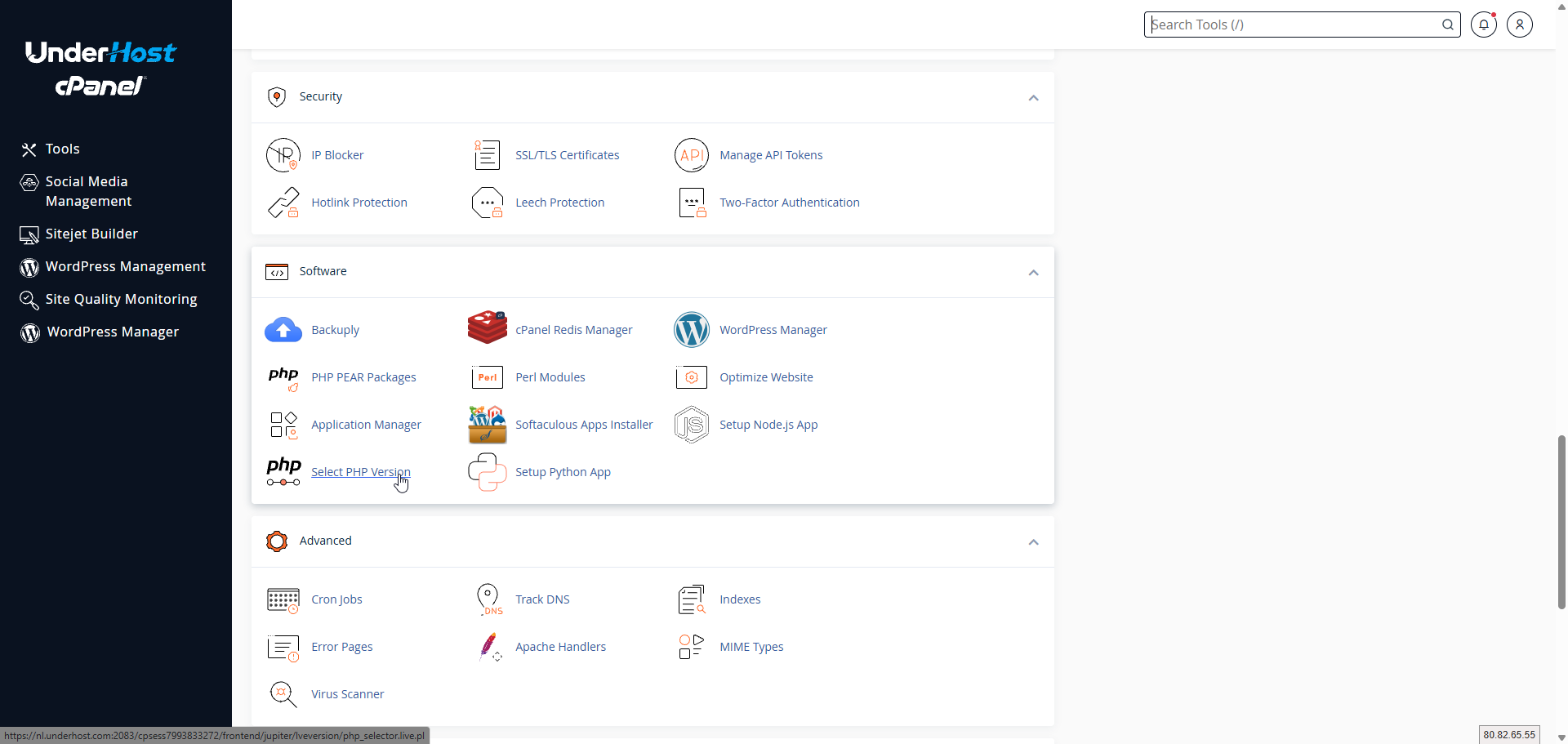
2. Change the account PHP version
- Open Account Global Settings if your interface shows that tab.
- Find the PHP version dropdown. The active version is marked (current).
- Select the version required by your application. If your interface displays Set as current, Apply, or a confirmation, complete it.
- Wait for the success message, then reload the selector and check which version is marked current.
- Review the Extensions and Options for that version, then test your websites.
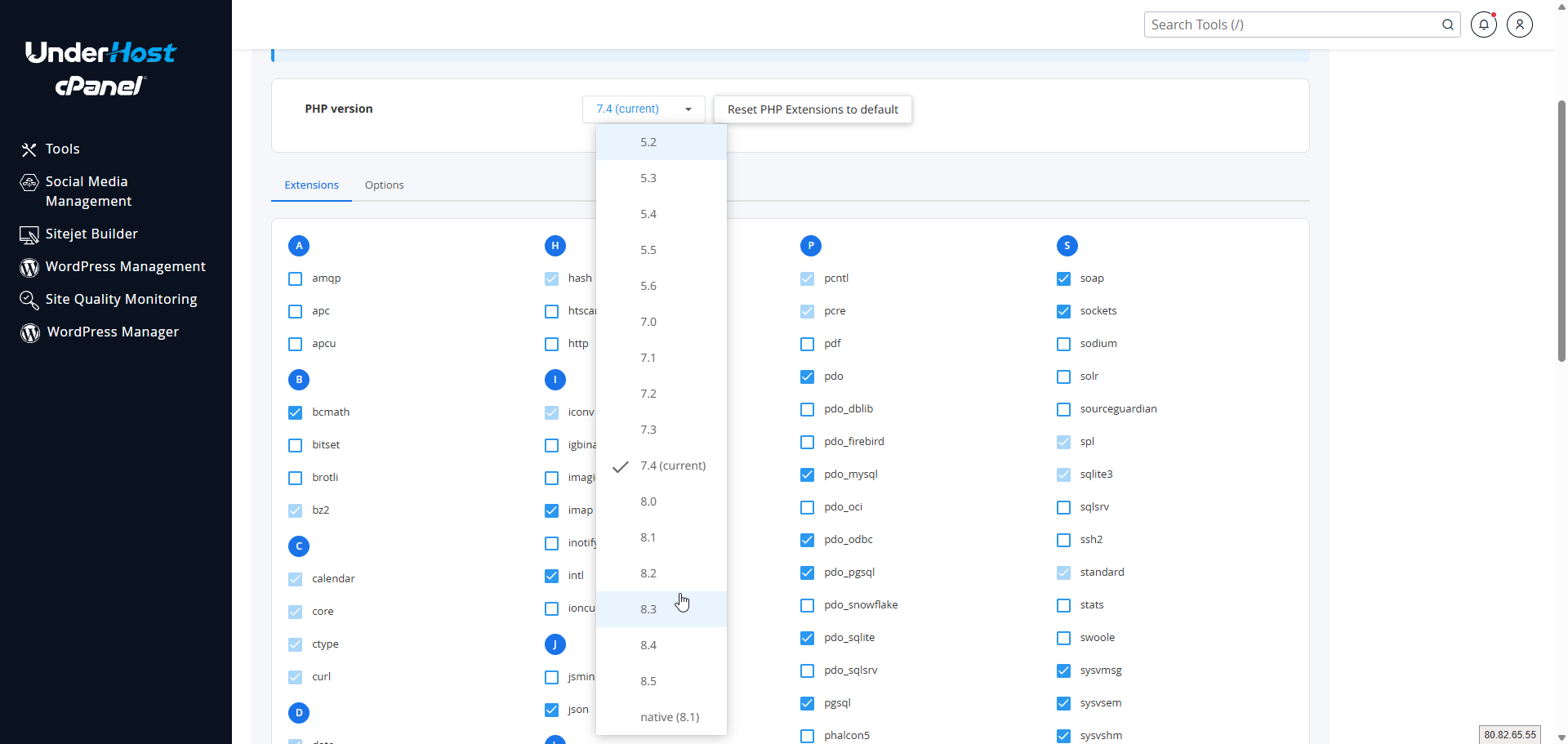
Account scope: Non-isolated domains use the account global settings shown in this interface. A global change can therefore affect several websites. Domains with their own isolated settings must be checked separately.
What does native mean? Native selects the server-provided PHP runtime rather than a selected CloudLinux Alt-PHP version. The version shown beside native is server-specific. Selector extension and option controls may be unavailable for native PHP; ask support which tool manages your domain before switching.
3. Use a different PHP version for one domain
In the supplied interface, Per Domain Settings offers site isolation: a domain receives its own filesystem isolation and PHP configuration. When enabled, it initially inherits the current account settings; subsequent changes are independent.
- Open Per Domain Settings.
- Find the intended domain and check its isolation status.
- Use that domain's isolation control if you need independent PHP settings. Avoid Enable Isolation for All when you only intend to change one website.
- Open the isolated domain's PHP controls and select its version, extensions, and options.
- Confirm the saved values and test that domain, including login, uploads, forms, and any integrations.
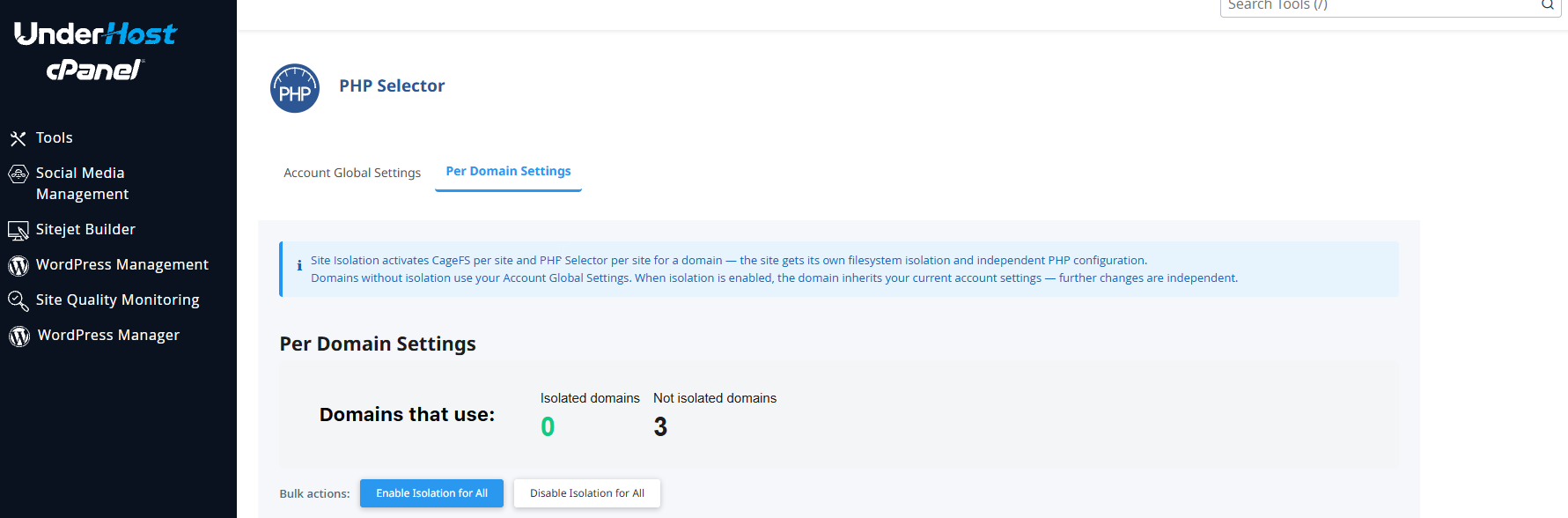
Disabling isolation returns a domain to account-level settings. Record its independent values before doing so and verify the account configuration first. If this tab or the domain controls are missing, contact support to confirm the options available on your server.
4. Enable the PHP extensions your site needs
Choose the correct account or domain scope and PHP version, then open Extensions. Check a required extension to enable it or uncheck an optional extension to disable it. Complete any save prompt and confirm the change. Pale or disabled checkboxes can represent built-in or non-editable modules.
Common application requirements include mysqli or pdo_mysql for MySQL, mbstring and intl for text processing, curl for HTTP requests, gd or imagick for images, and zip for archives. Enable what your application requires; extension availability and compatibility depend on the selected version. Encoded applications may require a compatible ionCube or SourceGuardian loader.
Reset PHP Extensions to default restores the server's default extension selection for the selected context. It is not a website restore or a rollback of all custom PHP options. Record your selection before using it. See PHP extension troubleshooting.
5. Change PHP options
- Confirm the PHP version and account or domain scope.
- Open Options.
- Use a checkbox for an on/off setting, a dropdown for an allowed value, or a text field for a custom value.
- Finish editing and use any save or apply control your interface presents. Wait for confirmation, then reload to verify persistence.
- Change one setting at a time and test the affected feature.
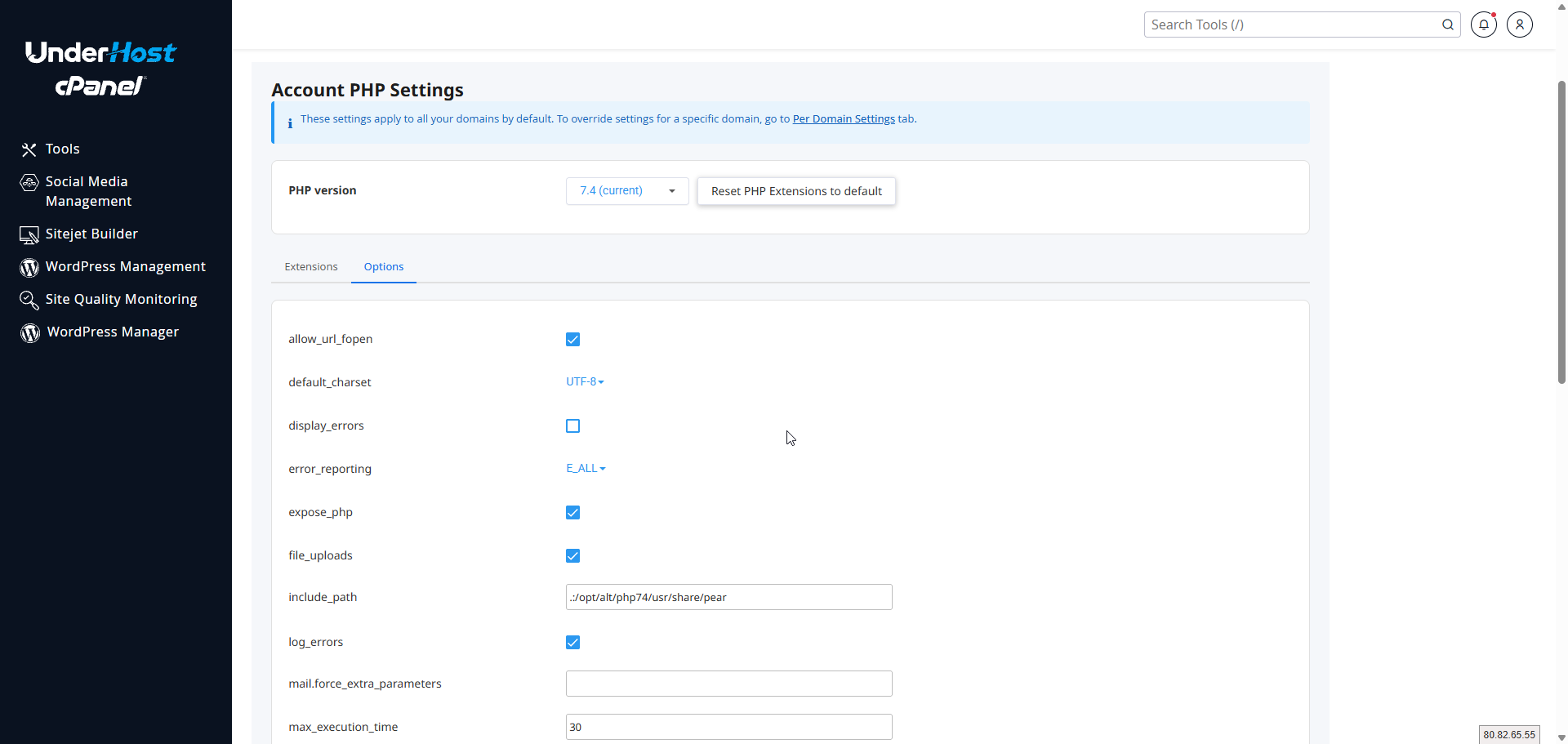
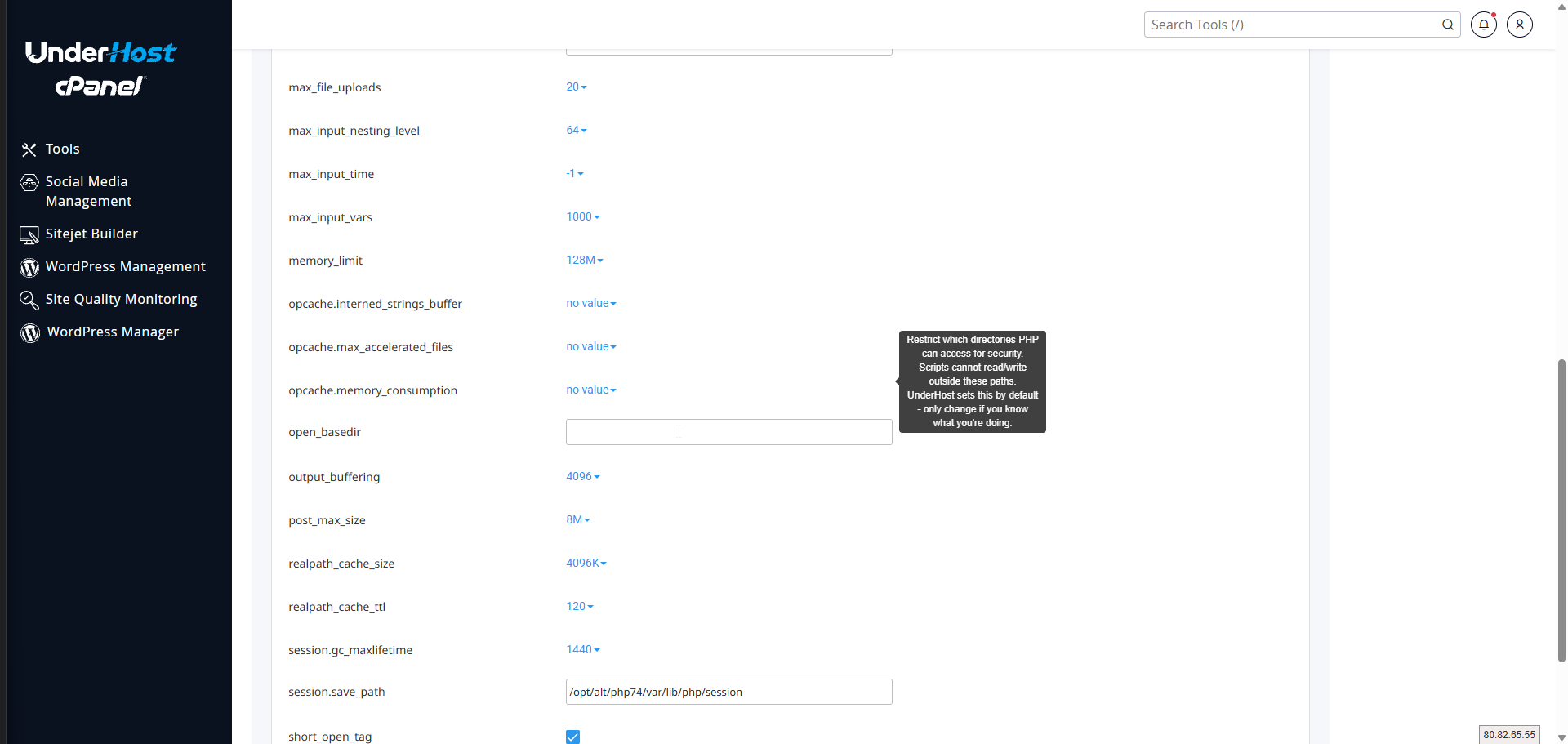
Use the units accepted by the field: size limits often accept K, M, or G; time limits use seconds. OPcache memory fields use numeric megabytes. Allowed values and server limits take precedence over examples below.
All available PHP options explained
This reference covers all 27 options supplied for this account. Keep existing values unless your application requirements or a diagnosed problem justify changing them.
General behavior and error handling
| Option | Meaning and guidance |
|---|---|
allow_url_fopen | Allows URL-aware file functions to read remote resources. Some applications need it; it does not enable remote PHP includes or control cURL. |
default_charset | Default character encoding; normally UTF-8. |
display_errors | Prints PHP errors in responses. Keep off on public sites; use logs for diagnosis so paths and other details are not exposed. |
error_reporting | Selects reported error levels. E_ALL includes all levels; display_errors and log_errors determine where they appear. Fix warnings rather than hiding them. |
expose_php | Controls PHP identification in response headers. |
log_errors | Writes PHP errors to the configured log. Enable for troubleshooting and inspect error logs. This checkbox does not choose a log destination. |
mail.force_extra_parameters | Forces extra parameters for the sendmail command used by PHP mail(), overriding the function's extra parameters. Leave unchanged unless support supplies a value; it does not configure SMTP authentication. |
short_open_tag | Enables legacy <? tags. Prefer <?php; <?= works independently. |
References: PHP core settings, filesystem settings, error settings, and mail settings.
Uploads, input, and execution limits
| Option | Meaning and guidance |
|---|---|
file_uploads | Permits HTTP file uploads. |
max_execution_time | Script execution timeout in seconds; the screenshot shows 30. Increase only for a known workload. On Unix, time spent in some system and stream operations is excluded; web-server timeouts can still apply. |
max_file_uploads | Maximum files per request; example: 20. |
max_input_nesting_level | Maximum depth of nested input arrays; example: 64. |
max_input_time | Time allowed to parse request input. -1 uses max_execution_time; it is not a separate unlimited setting. Large uploads may need additional input time. |
max_input_vars | Input variable limit, applied separately to GET, POST, and COOKIE. Example: 1000. Large forms may be truncated when exceeded. |
memory_limit | PHP script memory ceiling; example: 128M. Hosting account limits still apply. |
post_max_size | Total POST body limit, including files and fields. Keep above upload_max_filesize. |
upload_max_filesize | Maximum size of one uploaded file. |
References: PHP execution and input configuration and upload limits and pitfalls.
Paths, output, and sessions
| Option | Meaning and guidance |
|---|---|
include_path | Search paths for includes. Keep version-specific defaults. |
open_basedir | Restricts accessible filesystem paths. Incorrect values break applications. |
output_buffering | Buffers response output; numeric values specify bytes. |
realpath_cache_size | Cache size for resolved filesystem paths. |
realpath_cache_ttl | Resolved-path cache lifetime in seconds. |
session.gc_maxlifetime | Seconds before stored session data becomes eligible for garbage collection. The example 1440 equals 24 minutes. Cleanup timing and application or cookie rules also matter; this is not a guaranteed login duration. |
session.save_path | Storage location used by the session handler, usually a directory for file-based sessions. Keep the supplied writable path; an invalid path can break logins and carts. |
The screenshots show .:/opt/alt/php74/usr/share/pear and /opt/alt/php74/var/lib/php/session. These belong to that PHP 7.4 configuration. Do not copy them into another runtime; retain its supplied paths or ask support. See core configuration and session configuration.
OPcache
OPcache stores compiled PHP code to reduce repeated compilation. These settings require OPcache to be available and enabled; changing a number does not itself enable the extension.
| Option | Meaning and guidance |
|---|---|
opcache.interned_strings_buffer | Megabytes reserved for shared interned strings. Keep the server value unless measured usage justifies tuning. |
opcache.max_accelerated_files | Maximum number of script keys cached; PHP chooses a supported internal capacity based on this value. |
opcache.memory_consumption | Megabytes allocated to OPcache shared memory. This is separate from a script's memory_limit; availability depends on server configuration. |
No value indicates that the interface is not showing an explicit value, not necessarily that caching is off. Confirm effective settings before tuning. See the official OPcache configuration reference.
Example: allow a larger upload
For an application that needs a single 64 MB upload, an example configuration is file_uploads = On, upload_max_filesize = 64M, and post_max_size = 80M, if those values are allowed. The larger POST limit leaves room for form data and upload overhead. For several files in one request, allow room for their combined size.
Set memory and time limits according to the application's workload rather than increasing every limit. Test a real upload. Application limits, available disk space, proxy limits, web-server timeouts, and CloudLinux account resources can still prevent it. See CloudLinux resource usage.
Verify the change and roll back if needed
- Reopen the selector and confirm the saved version and options in the correct scope.
- Check the runtime reported by your application's diagnostics. In WordPress, open Tools → Site Health → Info → Server.
- Test the homepage, administration login, forms, image processing, uploads, and checkout where applicable. Review fresh PHP errors.
- If the site breaks, return to the same account or isolated domain and select the previously working PHP version. Restore recorded extension and option values as needed.
- Retest and resolve incompatible plugins or application code before attempting the upgrade again.
A PHP version rollback does not undo database migrations or application updates; use the appropriate backup if those changed. Scheduled jobs and command-line PHP may use a separate executable, so verify them independently.
Troubleshooting
- Select PHP Version is missing: Confirm that your plan and server provide PHP Selector. Do not install server software yourself on a shared account; ask support.
- The site still reports the old version: Check the requested domain, isolation status, and whether its handler is managed by MultiPHP. An explicit handler or other server configuration may take precedence. Ask support before changing handler directives.
- An option does not persist or take effect: Confirm the save succeeded and the selected scope is correct. Server restrictions, application overrides, or local configuration may affect the effective value.
- A function or extension is missing: Recheck Extensions for the newly selected version. A module available on the old version may not exist on the new one.
- White screen or HTTP 500: Check error logs, restore the prior runtime if needed, and inspect application compatibility. Keep public error display off.
- Memory or timeout errors persist: PHP settings cannot raise your hosting plan's CPU, physical memory, process, or I/O allocation. See memory errors and execution timeout errors.
- Logins fail after changing paths: Restore the recorded session path and filesystem settings, then retest.
When opening a support ticket, include the domain, selected PHP version, account or domain scope, changed options, exact error, and time of the failure. Include relevant log excerpts without passwords or session tokens.
Official references
For platform details, see CloudLinux Manager and control-panel integration and cPanel's PHP Selector and MultiPHP integration guidance. The screenshots illustrate UnderHost's interface; controls can differ between server versions.
Need cPanel hosting or licensing?
Use UnderHost cPanel hosting or add cPanel/WHM to a VPS or dedicated server for familiar website, email, DNS, and database management.




















